
Auto-connect onboarding for Enterprise organizations
New members connect their inbox and calendar automatically – no manual setup required.
When you invite someone to your Enterprise organization, auto-connect takes them straight from accepting the invite to a fully connected Fyxer account, saving them from going through the connection process manually.
This is particularly useful when onboarding multiple people at once.
This feature is only available on Enterprise plans.
Before you set it up
Your organization must be on an Enterprise plan with Enterprise features enabled to use auto-connect. If you're unsure whether this applies to you, contact your Fyxer account manager or reach out to Support using the chat in the bottom right of your Dashboard.
Using auto connect with SSO
If you want to use auto-connect with SSO, only one provider, either Google or Outlook, can be active.
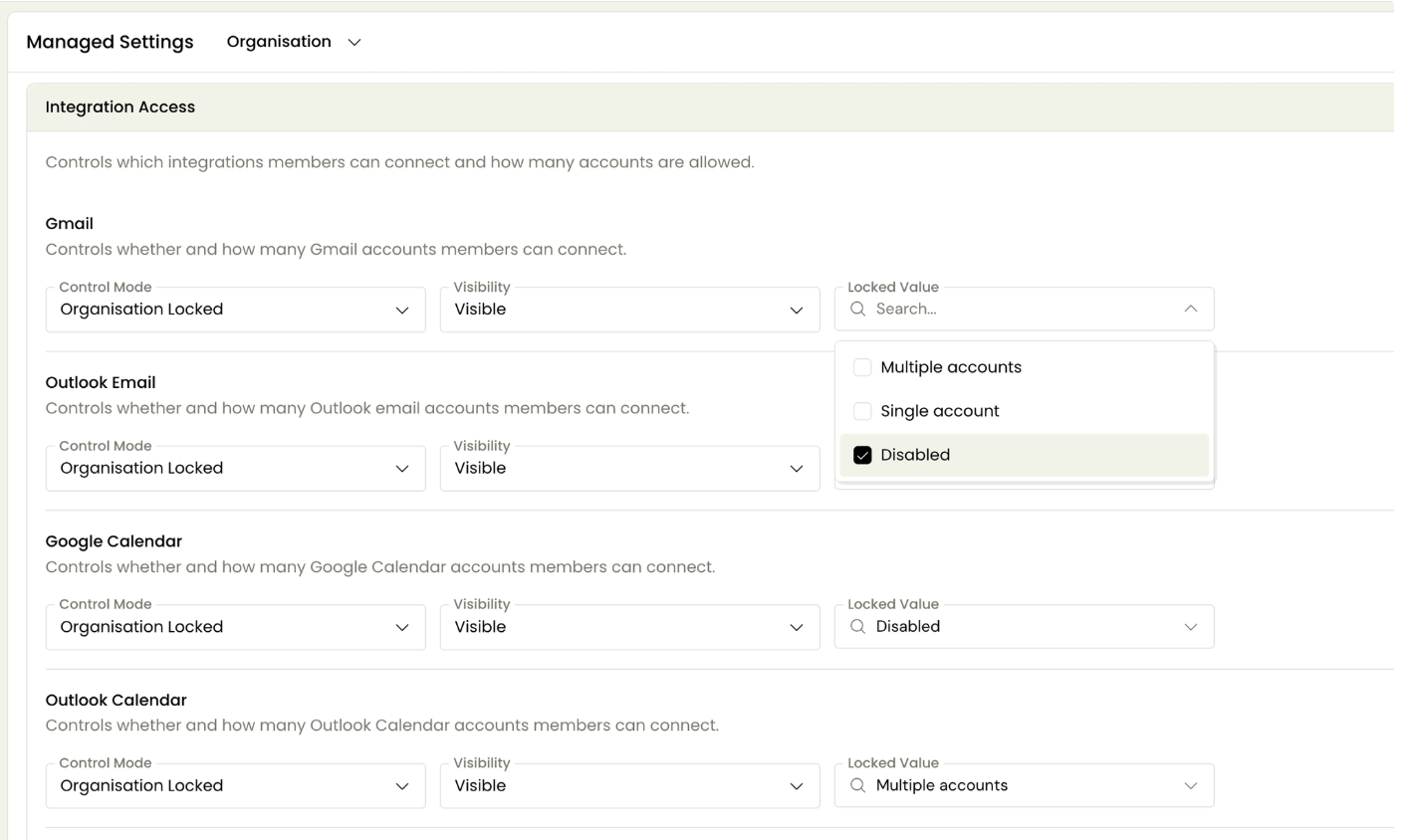
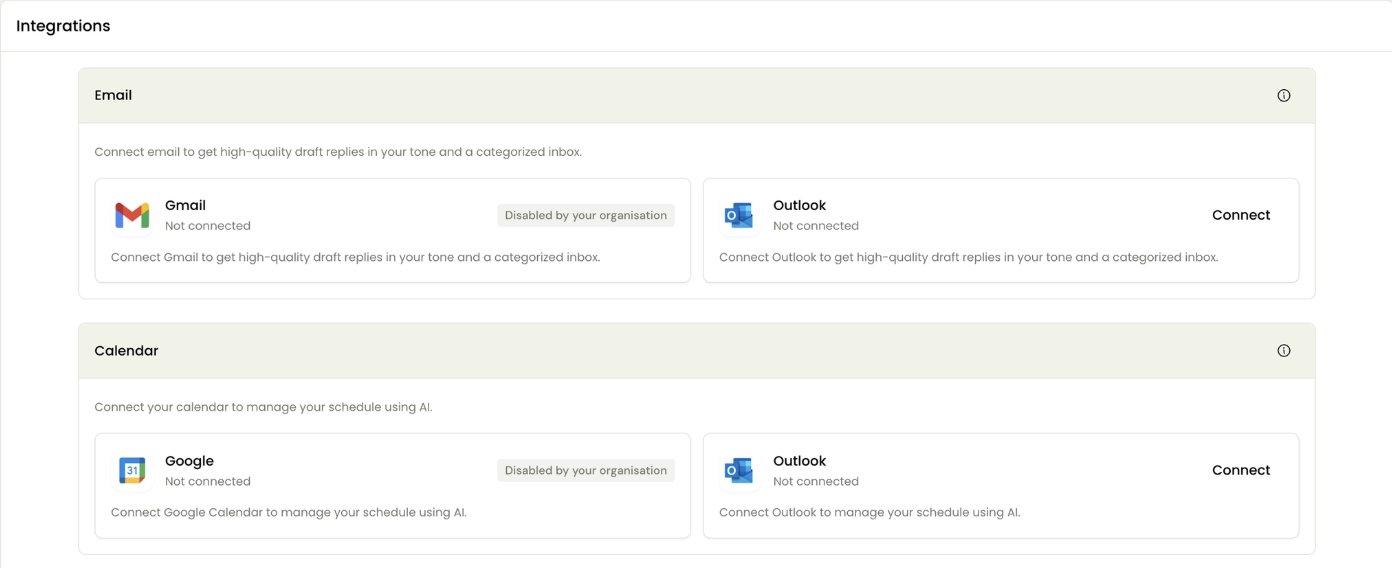
You'll need to indicate your preferred provider by disabling the one your team doesn't use before sending the invites.
To do this, go to Dashboard → Settings → Managed settings → Integration access and disable the relevant provider, both email and calendar. For example, if your organization uses SSO with Outlook, you should disable Gmail and Google calendar.
How to invite members with auto-connect
Auto-connect activates automatically for any new member invited to your Enterprise organization. There's nothing extra to turn on.
Invite members either by sending a direct email invitation or by sharing your organization's invite link. Both methods trigger the auto-connect flow.
To invite members, go to Dashboard → Settings → People → Invite teammates.
As soon as they accept your invite, your users will see Fyxer processing their emails and adding Fyxer categories to their inbox, assuming labeling is enabled. Make sure you communicate this alongside the invite. Refer them to support.fyxer.com for more information on how Fyxer works.
What the member experiences
When an invitee accepts the invitation and logs in via SSO, Fyxer connects their inbox and calendar automatically as part of the login flow. They may be asked to sign in twice – once to authenticate their Fyxer account and once to authorize the integration. This is expected behavior.
They'll land in the Fyxer Dashboard with their email and calendar already connected.
Frequently asked questions
Does auto-connect work without SSO?
Yes. Auto-connect works for any authentication type: login with SSO, sign-up with Google, or sign-up with Microsoft.
What if a member's connection fails during onboarding?
Ask them to go to Dashboard → Settings → Integrations and connect their inbox and calendar manually. If they're on Outlook, confirm that Fyxer has been approved in your Microsoft 365 admin panel first. See: Admin setup guide: approving Fyxer in Microsoft 365.
Can I use auto-connect when adding members to an existing organization?
Yes. Auto-connect applies to any new member invited to your organization, whether you're onboarding your first team or adding people later.
Still have questions?
Head to the chat in the bottom right of your Dashboard.