
Connecting Outlook to Fyxer – what to do if Microsoft asks for admin approval
Fyxer is a Microsoft-verified partner app. If your organization requires admin approval to connect Outlook, follow these steps to get set up.
When you try to sign up or connect your Outlook email account to Fyxer, Microsoft might ask for admin approval. This happens when your company requires an IT admin to approve new apps before Fyxer can access your Microsoft/Outlook account.
Step 1: start the connection
Go to Fyxer
Click Continue with Microsoft/Outlook
Follow the onboarding prompts, using the Continue with Microsoft buttons
You'll be redirected to Microsoft's sign-in page
Step 2: note which Microsoft message appears
You will see one of two messages:
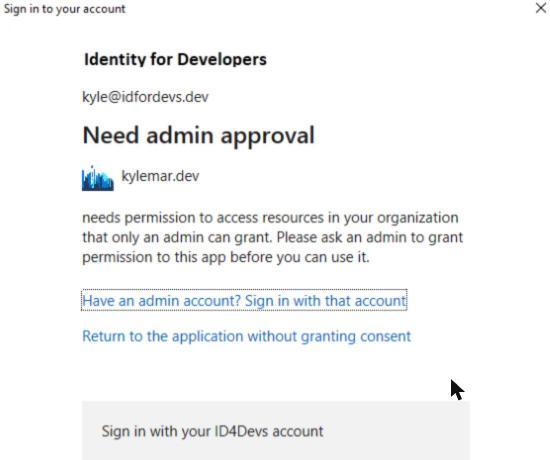
1. Need admin approval
Your organization requires admin approval for all apps.
2. Approval required
Your Microsoft admin blocks user consent to third-party apps unless they (the Admin) explicitly approve them.
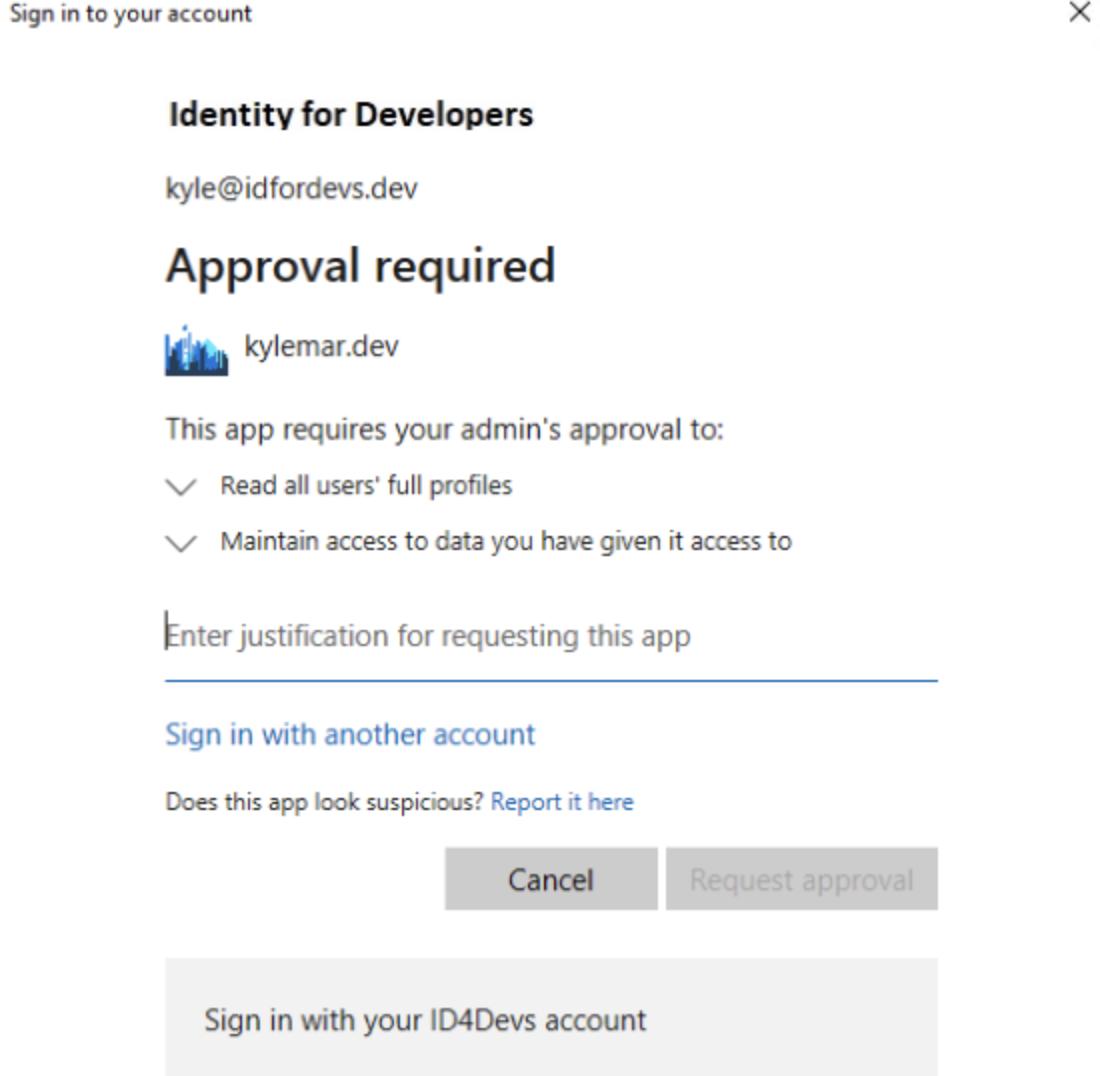
Take a screenshot of the message you see.
Step 3: contact your IT admin
Contact your IT admin and let them know you're trying to connect Fyxer, including your screenshot, as above.
Let them know that Fyxer is a Microsoft-verified partner app, and share:
The Admin setup guide, to help them enable Outlook connections
The Fyxer Trust Center, for details on Fyxer's data security and compliance
Step 4: reconnect after approval
Once your admin confirms approval:
Return to Fyxer
Click Continue with Microsoft/Outlook
Sign in with your Microsoft account
You will now be connected.
Still have questions?
Head to the chat in the bottom right of your Dashboard.