
How to record a meeting in Fyxer
How to record meetings, invite Notetaker, or upload recordings into Fyxer for transcription and summaries.
Fyxer gives you three ways to capture a meeting:
Record through your microphone
Invite Notetaker to join a live online meeting
Upload an existing recording
Each option generates a transcript and meeting summary once processing is complete.
Record via microphone (in-person meetings)
Use Start recording now when you want to capture audio directly from your device. This is ideal for in-person meetings or ad-hoc conversations not linked to a calendar invite.
How to record using your microphone:
Go to Dashboard → Notetaker
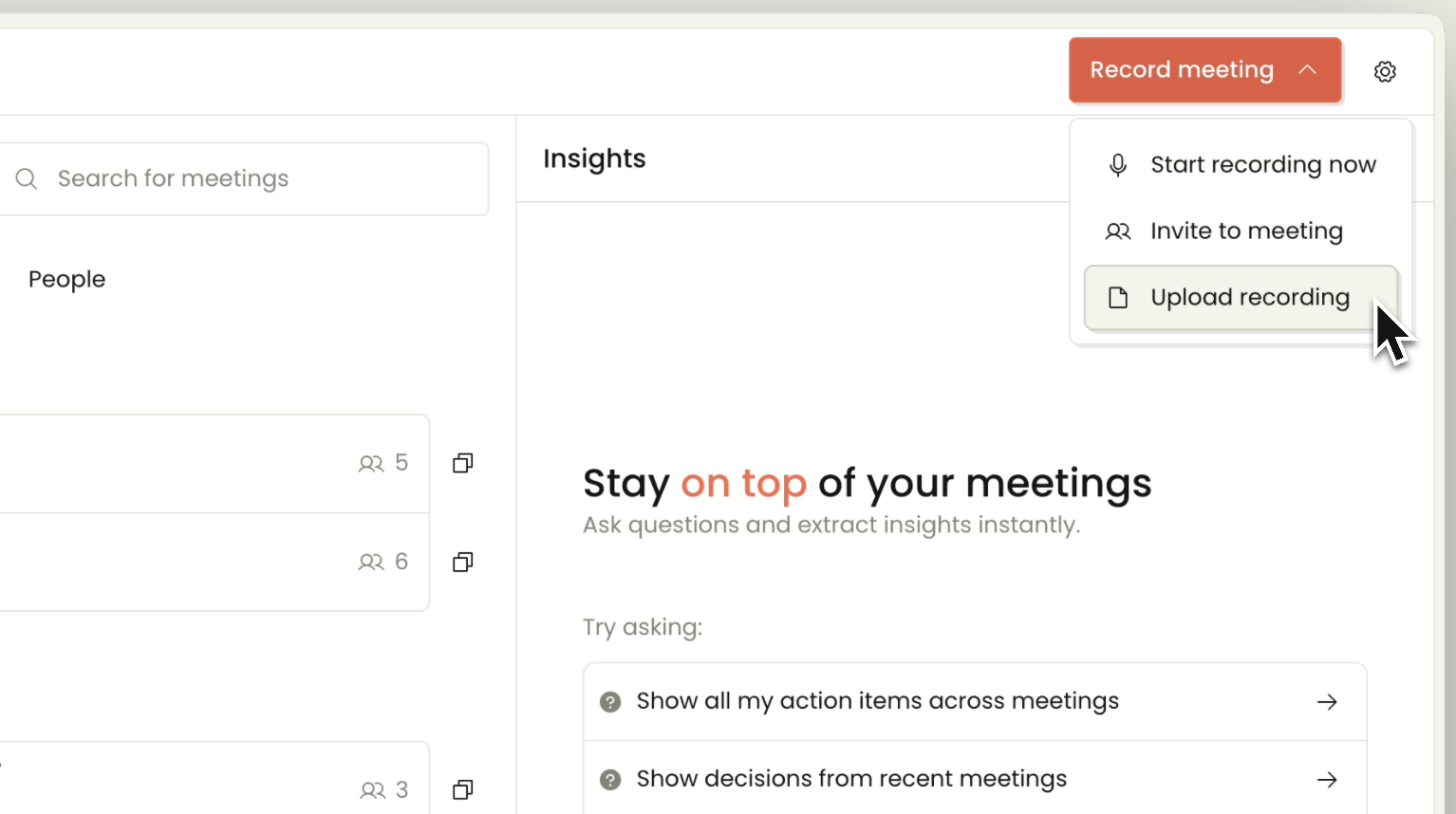
Select Record meeting → Start recording now
You'll see an option to link the recording to a calendar event, if one exists
Confirm your microphone input
Click Start recording
Recording limits:
The maximum recording duration is two hours. If the meeting goes over two hours, recording stops and only the first two hours will be transcribed and summarized.
Tips for clearer transcripts:
Record in a quiet space
Speak clearly and introduce participants by name
Inform attendees that the session is being recorded
Invite Notetaker to an online meeting
Use this when your meeting already has a Zoom, Teams, or Google Meet link.
How to invite Notetaker:
Go to Dashboard → Notetaker
Select Record meeting → Invite to meeting
Paste the meeting URL
Click Start recording
Notetaker joins the call, captures the conversation in real time, and produces the transcript and summary afterward.
You only need to do this if Notetaker isn't already set up to automatically join all meetings. See How to set up your meeting Notetaker for more on auto-join settings.
Upload an existing recording
If you already have an audio or video recording, you can upload it to get a transcript and meeting summary, as well as keep all your meeting recordings together in one place.
How to upload:
Go to Dashboard → Notetaker
Select Record Meeting → Upload recording
You'll see an option to link the recording to a calendar event, if one exists
Choose your audio/video file (max size: 1GB)
Click Import meeting
Fyxer will process the file and generate the transcript and summary.
After the meeting
Once processing finishes, regardless of recording method, you'll have:
A searchable transcript
A structured meeting summary
Summary style options (executive, chronological, sales-focused, etc.)
Editing tools (expand, shorten, regenerate)
PDF export and copy to clipboard options
The Chat panel to find answers quickly
A suggested follow-up email draft based on the discussion (you can turn these off: Dashboard → Notetaker → click the gear icon top right for Notetaker settings → toggle off Create follow-up email drafts)
All outputs appear in your Dashboard under Notetaker → Recorded.
Still have questions?
Head to the chat in the bottom right of your Dashboard.